
How to set up AI visibility when your package includes it
Enable AI / GEO visibility tracking when your RankWatch package includes AI Visibility — brand, engines, prompts, and competitors.
Prerequisites
- AI Visibility on your package enabled for your organization
- project.create or project.update as required for create / add-AI flows
AI visibility (GEO) is package-included. If AI does not appear in the create wizard or project nav, your organization likely lacks AI Visibility — confirm under Organization settings → Billing / Package (org owner) or ask your administrator.
Steps
- Confirm AI Visibility is enabled on your package. Without it, AI setup stays unavailable.
- New project: open Projects → New project and include the AI mentions objective (with or without Search engine rankings). Local SEO create is not available — do not wait on Local to unlock AI.
- Existing SEO-only project: use Add AI / add search engine for the AI pillar from the project (requires edit rights), then configure engines and prompts.
- Set brand name and brand variations so models can be matched when they mention you in natural language (domain alone is not enough).
- Choose AI engines (for example ChatGPT, Perplexity, Gemini, Claude, Google AI Mode — as entitled), locations, and an initial prompt set.
- Decide Track subdomains on create (see Track subdomains), add competitor brands if known, then finish and wait for the first AI jobs.
Outcome
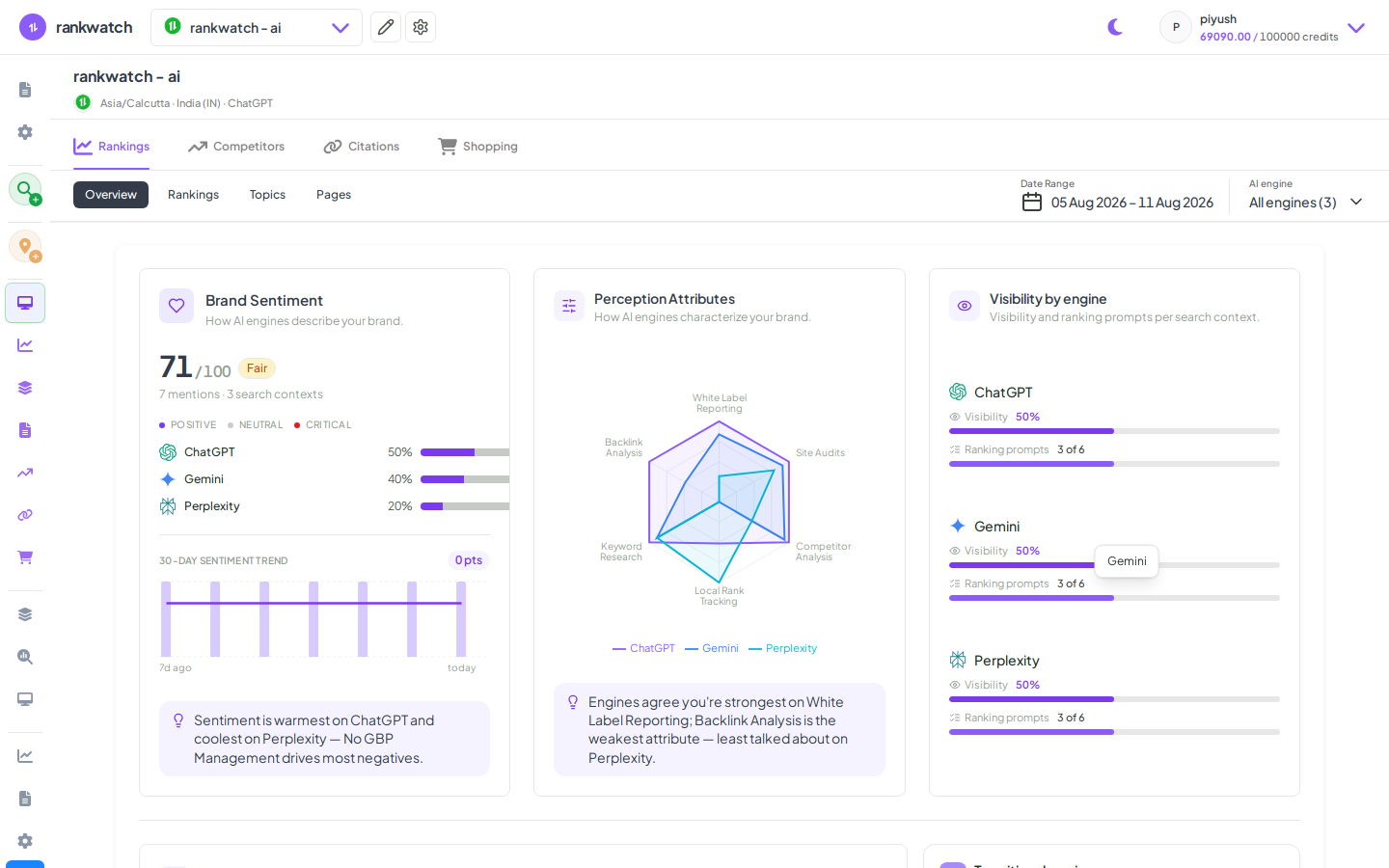
AI Overview, Rankings (prompts), Citations, and Competitors populate as jobs complete. Prompt and engine volume consume AI-related package limits and credits — plan prompts carefully for client workspaces.