
How to choose properties and complete first sync
After Google OAuth, select the Search Console property and complete the first sync so Overview and tabs can populate.
Prerequisites
- GSC property access; RankWatch integrations.gsc permissions as required
Connecting a Google account is only half the job — you must select the correct Search Console property and let the first sync (plus historical backfill) finish.
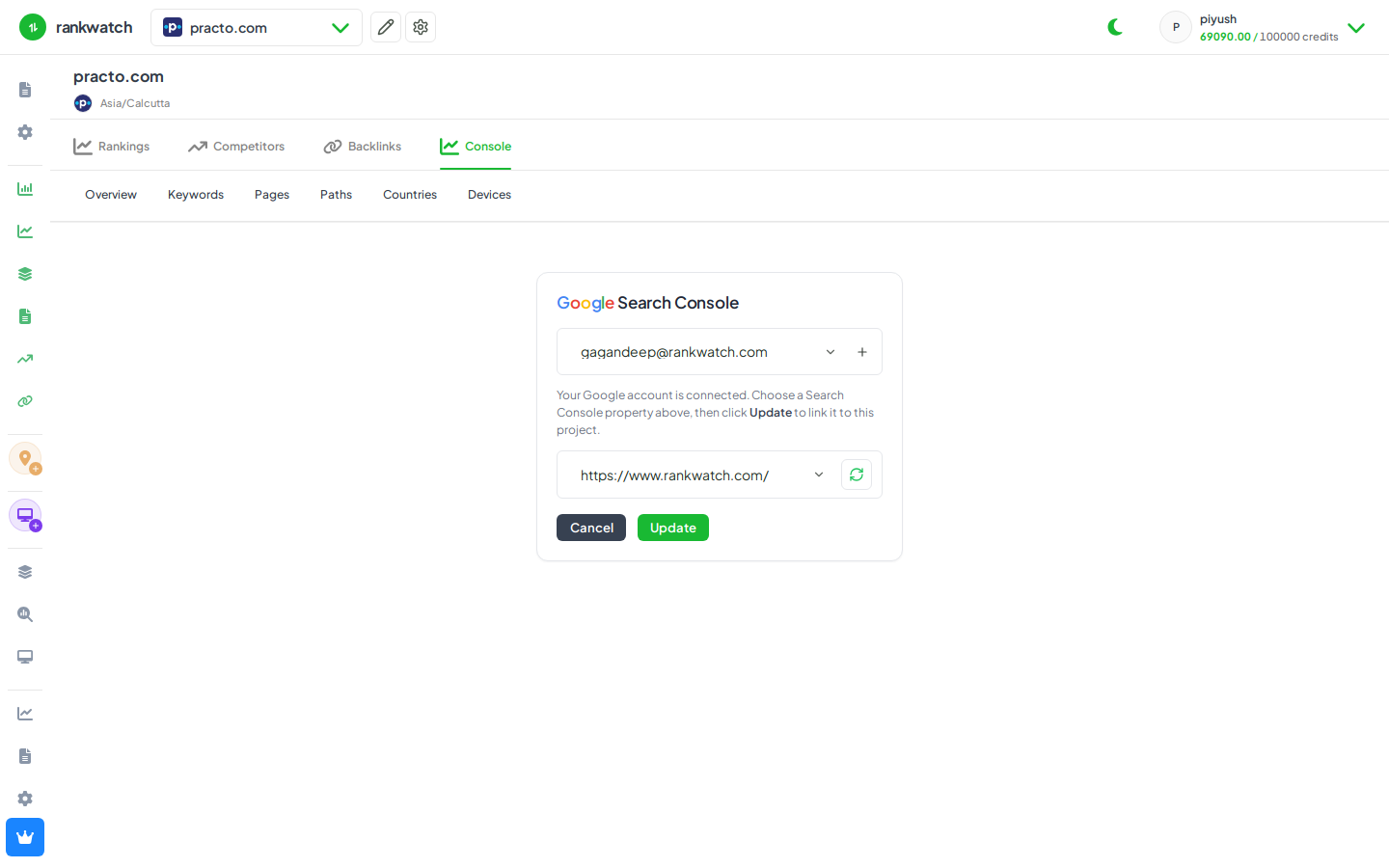
Steps
- Open Projects → project → Search Console → Settings (after Connect Google Search Console).
- Refresh the property list if needed, then select the domain or URL-prefix property that matches this project’s site.
- Save the property link. RankWatch starts the initial import window (recent days unlock the dashboard first).
- Stay on Overview until the first sync window shows data; historical backfill continues in the background.
- Open Keywords, Pages, and Paths tabs once the short window is ready — empty tabs usually mean sync still running or the wrong property.
Outcome
The project is linked to one GSC property with live sync. Details: First sync and historical backfill.