
How to connect Google Search Console
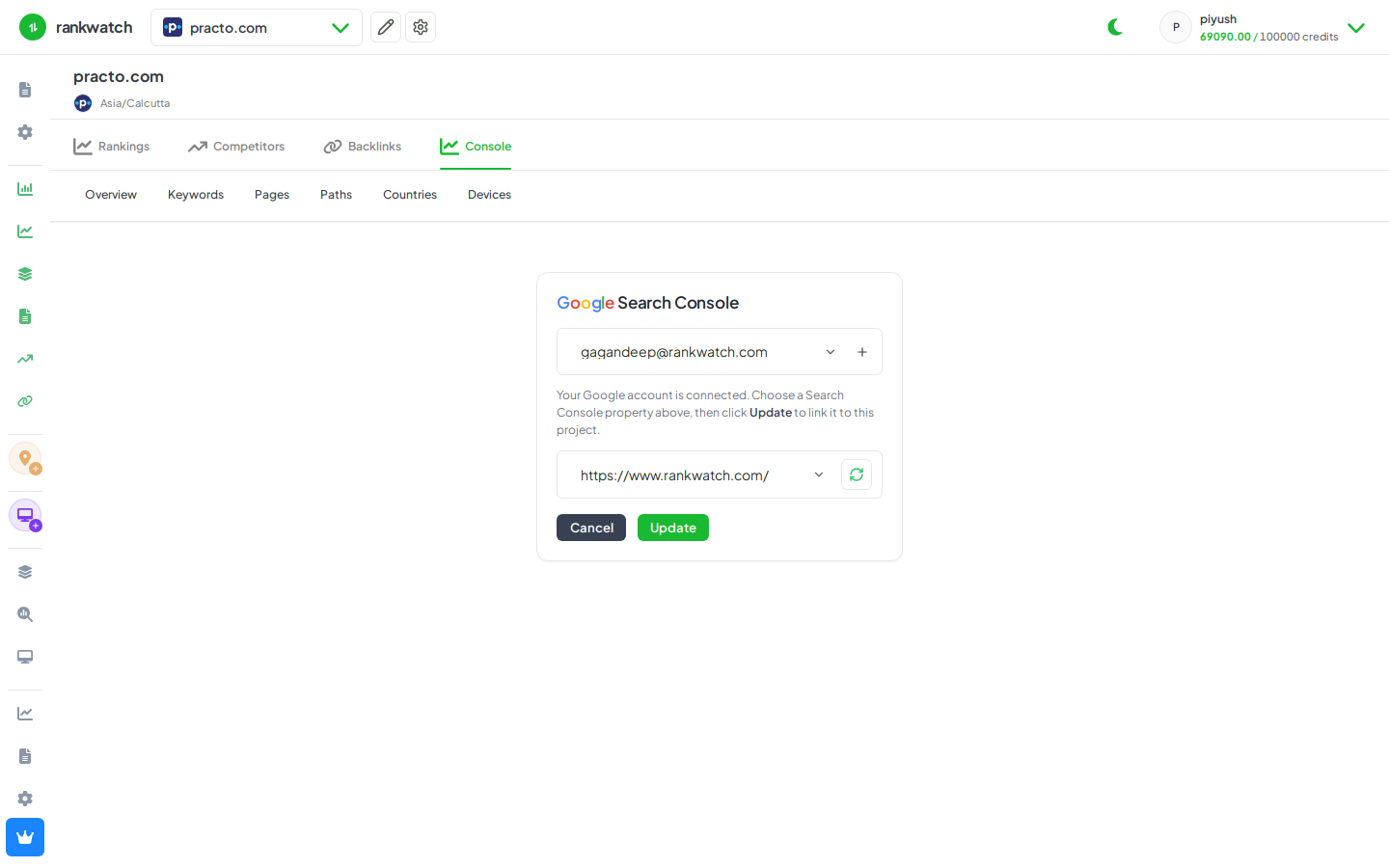
Connect a Google account and link a Search Console property to a RankWatch project so Overview, Keywords, Pages, and Paths can sync.
Prerequisites
- Google account with access to the Search Console property
- RankWatch permission to configure GSC on the project (integrations.gsc / connect rights — viewers may see dashboards without connect)
Link Google Search Console so RankWatch can import clicks, impressions, CTR, and position data alongside your tracked rankings.
Steps
- Open Projects → your project.
- Open Search Console (or the empty-state Connect Google Search Console prompt) and go to Search Console Settings for the SEO context.
- Choose Connect Google account and complete Google OAuth with an account that can access the property. Grant the requested Search Console scopes.
- After the account connects, refresh profiles if needed, then select the correct Search Console property from the list.
- Confirm / save the property link. RankWatch starts the initial import (short-window data unlocks the dashboard first; historical backfill continues in the background).
- Open the Search Console Overview when the first sync window completes. Use Keywords, Pages, and Paths tabs once data is ready.
Outcome
The property is linked to the project. GSC dashboards populate as sync progresses. If OAuth is revoked or permissions are insufficient, reconnect from Search Console Settings. Teammates can be granted dashboard view without connect rights — see grant GSC dashboards without connection rights.