
How to troubleshoot “permission denied” for a teammate
Troubleshoot RankWatch permission-denied errors for a teammate by checking role, workspace, and package gates.
Prerequisites
- Org owner or member manager access; ability to view the teammate’s role
Most “permission denied” cases are wrong workspace, wrong role keys, or a package package limit — not a UI bug.
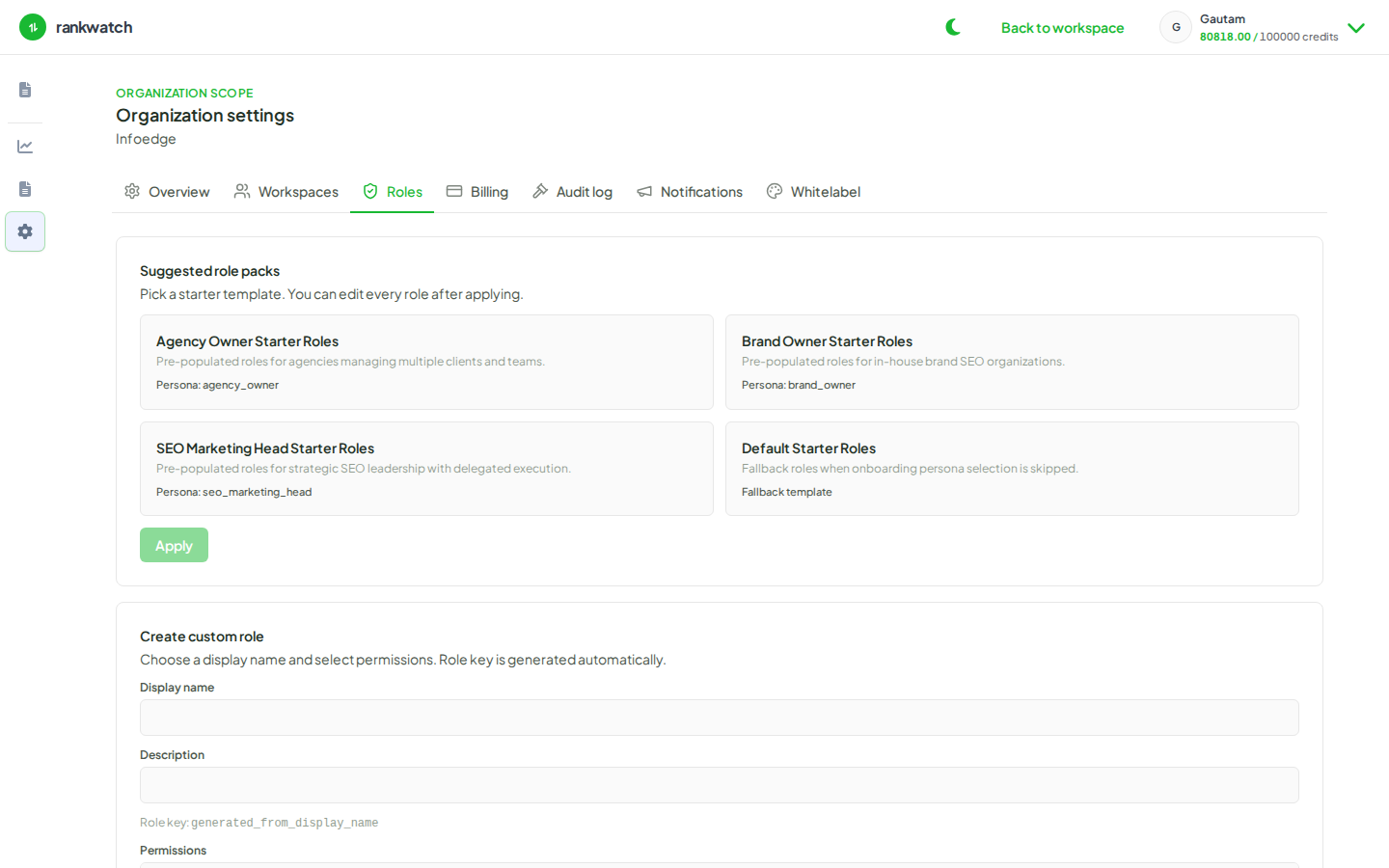
Steps
- Confirm the teammate is in the correct workspace (header switcher) and organization.
- Open Workspace team and note their assigned workspace role.
- As org owner, open Roles and inspect that role’s keys against the blocked action (read vs write).
- If the missing nav is AI or Tools, check package under Billing (AI Visibility,
tool features) before changing roles. - If they need organization-owner access (billing, notification admin, role CRUD), explain those stay org-owner only — do not try to stuff them into a workspace role.
- Adjust the role or change the member’s role, then have them hard-refresh and retry.
Outcome
You either grant the correct workspace permission, escalate to the org owner for organization-owner work, or identify a package gap.