
How to assign a role when inviting a teammate
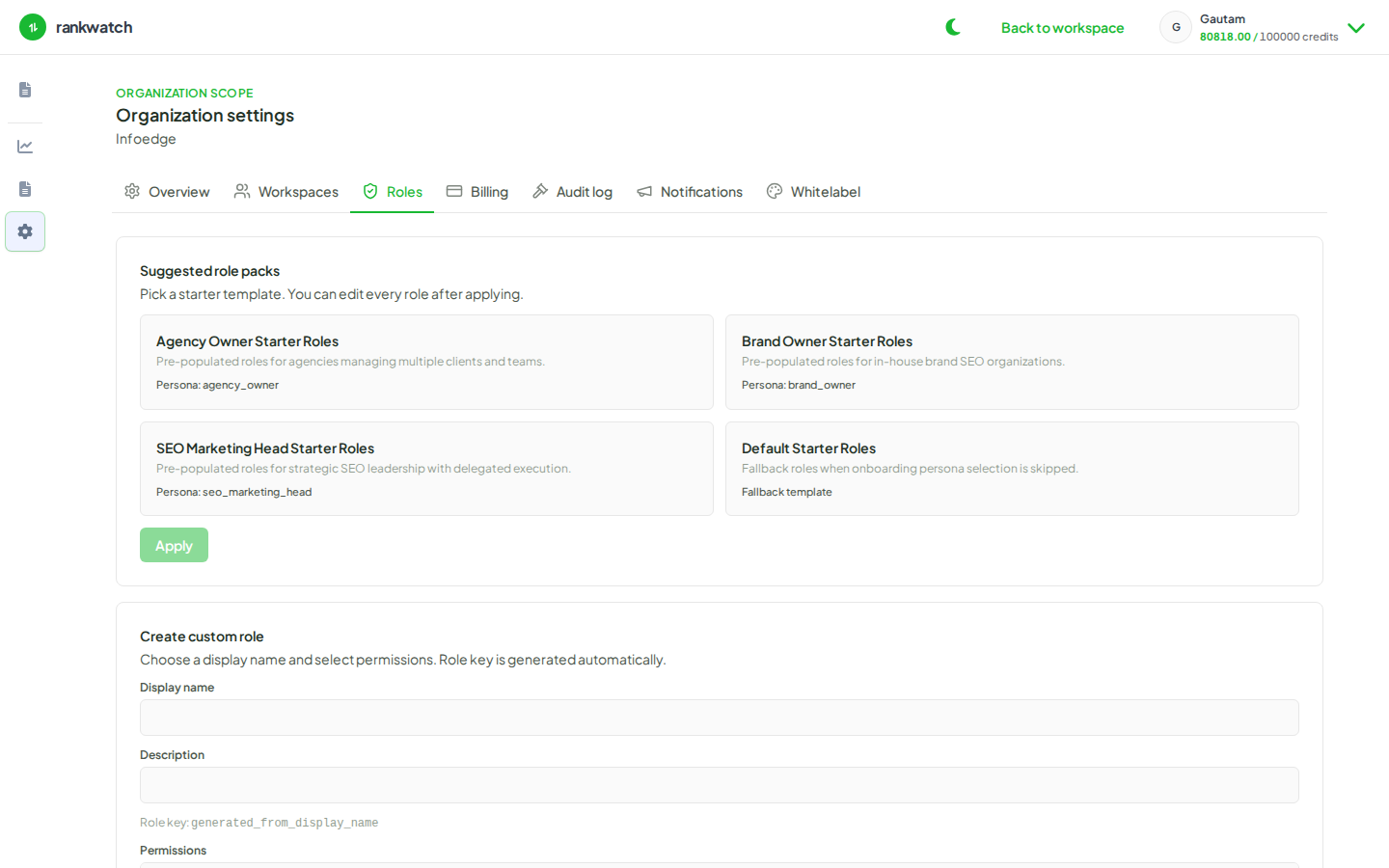
Assign a workspace role when inviting a teammate so they join with the right permissions.
Prerequisites
- Invite permission in the workspace; roles already created
Every invite needs a workspace role (workspace role). Pick the role that matches the job before you send the email.
Steps
- Switch to the target workspace.
- Open Workspace team (or the org workspaces invite panel for that team).
- Enter the teammate’s email.
- Select the workspace role (Client Viewer, SEO Executive, custom role, and so on). Confirm you are not inviting them into the wrong client workspace.
- Send the invite. Ask them to accept with the invited email (accept invite).
- After acceptance, verify they can open expected dashboards and that denied actions return permission errors.
Outcome
The teammate joins the workspace with the selected role’s permissions. Org-owner account controls stay with the organization owner.