
How to switch between workspaces
Switch organization and workspace context in the RankWatch app header so you open the correct client projects.
Prerequisites
- Membership in more than one workspace (or more than one organization)
RankWatch keeps organization (billing, roles, branding) separate from workspaces (client projects and members). Use the header switchers when you work across clients.
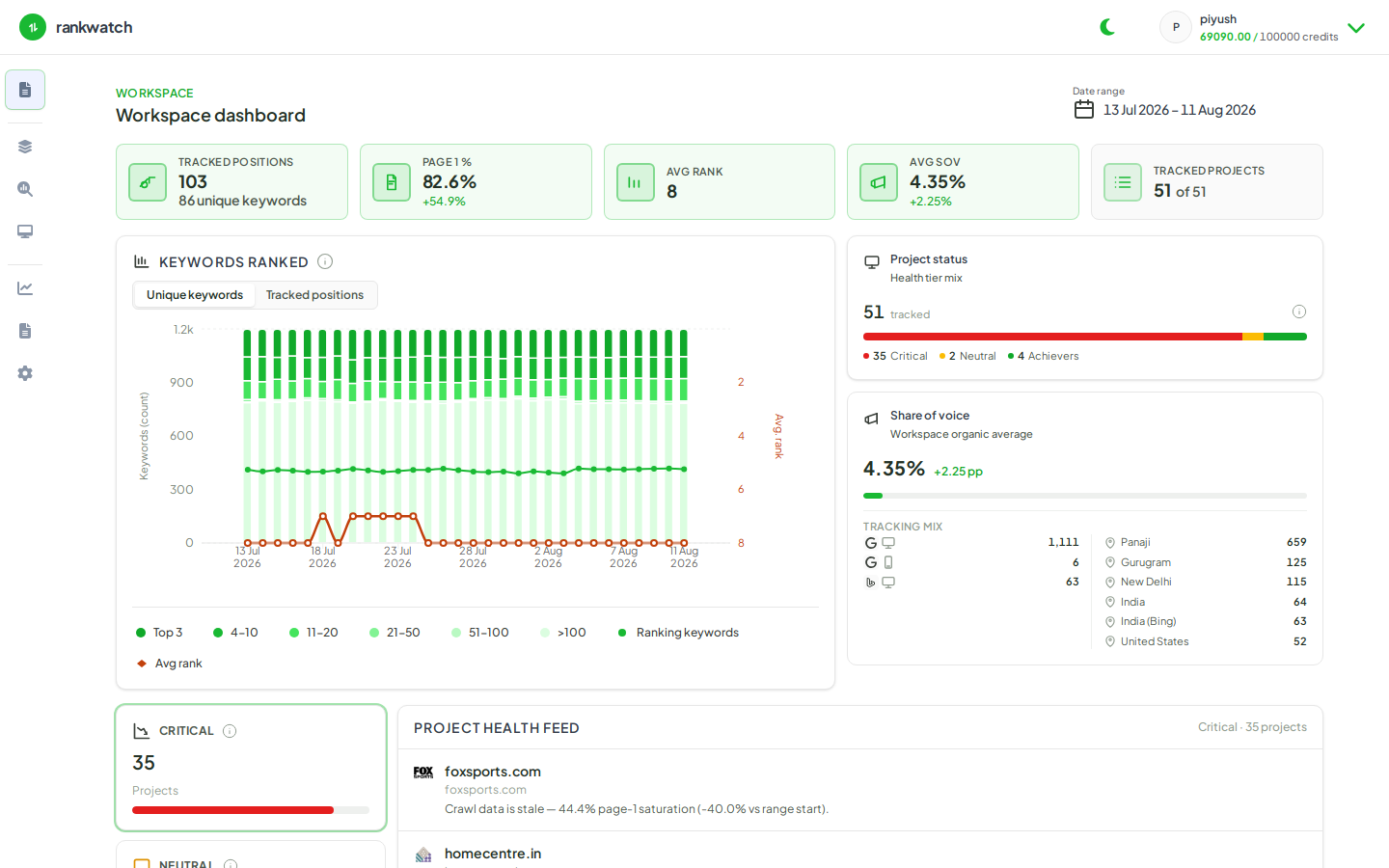
Steps
- Sign in and open any app screen (for example Projects).
- If you belong to more than one organization, open Switch organization in the workspace chrome and pick the target org.
- If that organization has more than one workspace, open Switch workspace and select the client workspace you need.
- Confirm the header shows the expected organization and workspace names, then open Projects — the list is scoped to the active workspace only.
- Optional: open Organization settings → Workspaces (org owner) to review which workspaces exist under the org.
Outcome
Projects, team, tools, and reporting now reflect the selected workspace. Data from other client workspaces stays isolated until you switch again.