
How to manage keywords in a project
Add, tag, pause, and organize tracked keywords from Rankings and project keyword settings in RankWatch.
Prerequisites
- Existing SEO project
- keyword.update (or equivalent keyword manage) for edits; keyword.read to view
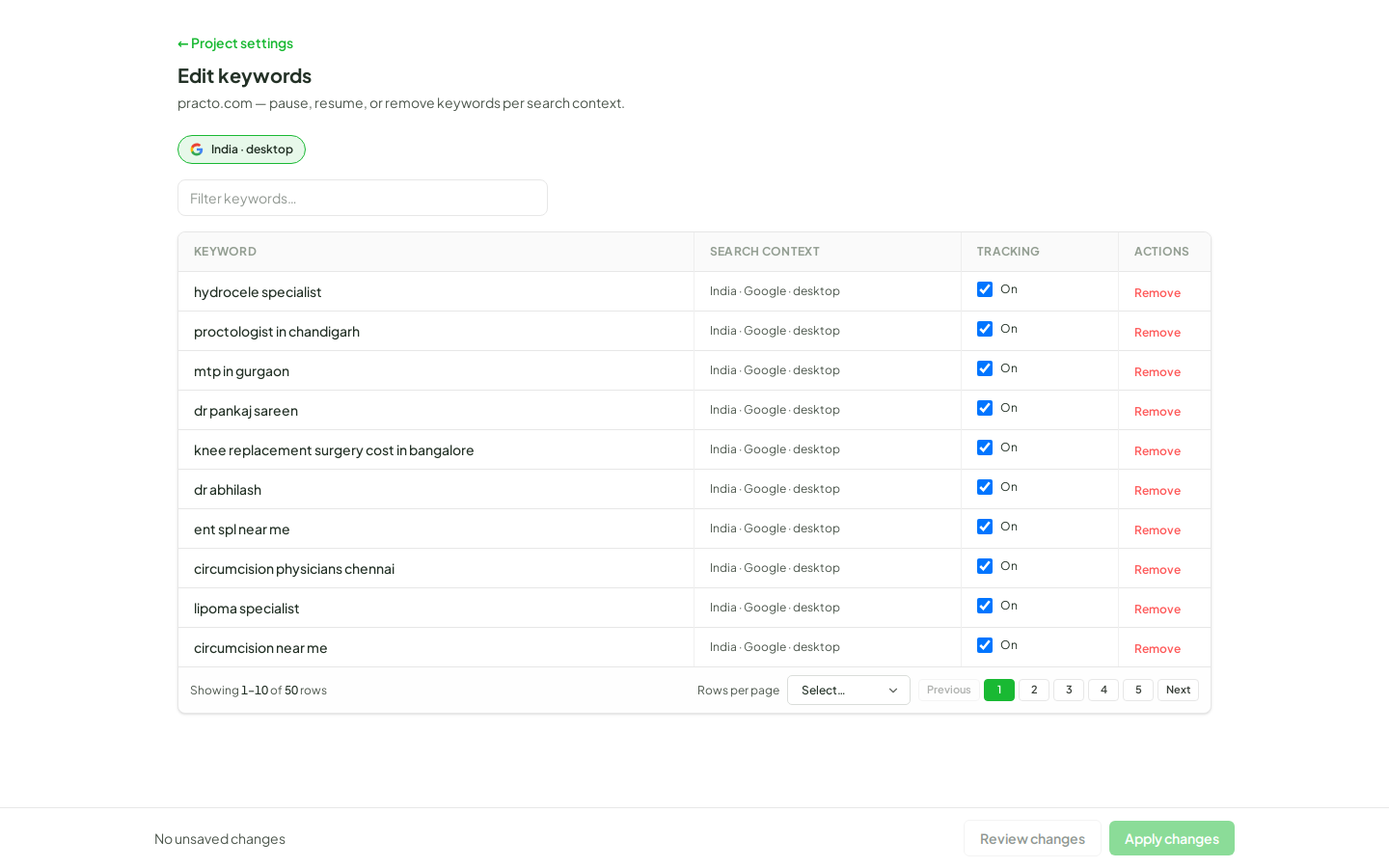
Day-to-day keyword ops live on the project Rankings table. Use add/import for growth, tags and topics for segmentation, and pause when you need to stop checks without deleting history.
Steps
- Open Projects, select the project, then open Rankings for the search context you care about.
- To add keywords: choose Add keywords, enter one keyword (or paste multiple lines), optionally assign tags/topics in the draft table, then submit. Duplicates already tracked in the context are checked on add.
- To import a larger list: in Add keywords, use Import CSV (or paste a multiline list) — see How to bulk import keywords.
- To organize: select rows → More → Manage Tags, or filter the table by tag / advanced filter rules.
- To stop checks temporarily: open the row actions menu → Pause (history stays; jobs skip paused keywords until you resume).
- For broader keyword settings across engines, open project keyword edit when available (
/projects/{id}/edit/keywords) after confirming you have project.update / keyword manage rights.
Outcome
The keyword set matches what you want tracked. Rankings, Overview scorecards, alerts, and exports all respect the active (non-paused) set and any filters you apply.