
How to invite a client as a read-only workspace member
Invite a client into their workspace with a read-only Client Viewer role so they can view dashboards without editing tracking.
Prerequisites
- Org owner or invite permission; Client Viewer (or similar read-only) role prepared
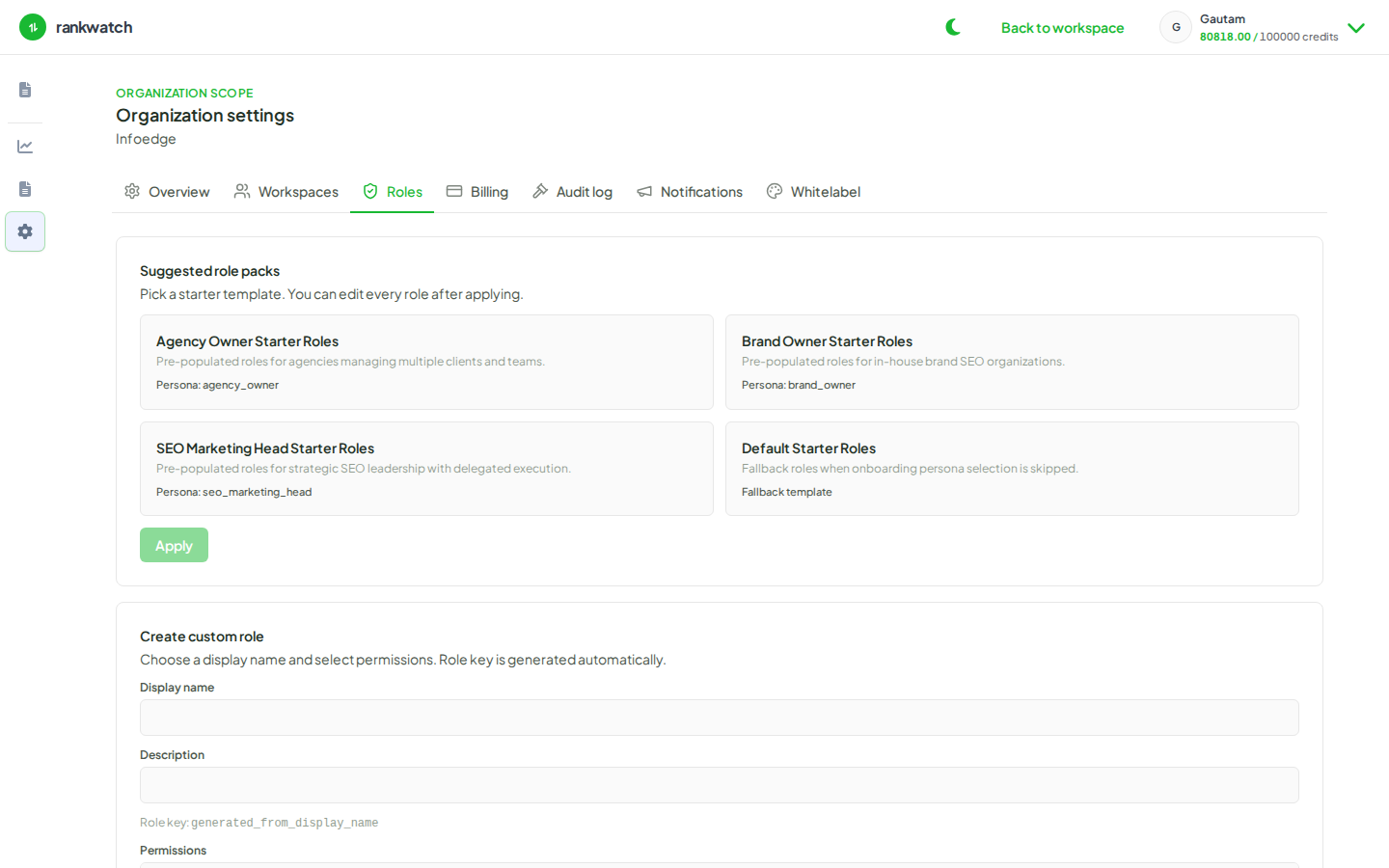
Clients should usually enter as read-only members of their own workspace. Build a Client Viewer role first, then invite.
Steps
- As org owner, ensure a read-only role exists (build a Client Viewer role).
- Switch to the client’s workspace.
- Open the invite flow from Workspace team (or Organization workspaces invite for that team).
- Enter the client contact email, select the Client Viewer (or equivalent read-only) workspace role, and send the invite.
- If you use whitelabel, choose the correct portal access mode / hostname so they land on your branded domain when included on your package.
- After they accept, spot-check that they can open Overview/Rankings but cannot add keywords, change settings, or manage billing.
Outcome
The client can review their workspace dashboards (and entitled reports) without mutating projects, keywords, or organization settings.