
How to change monthly credits and add-ons
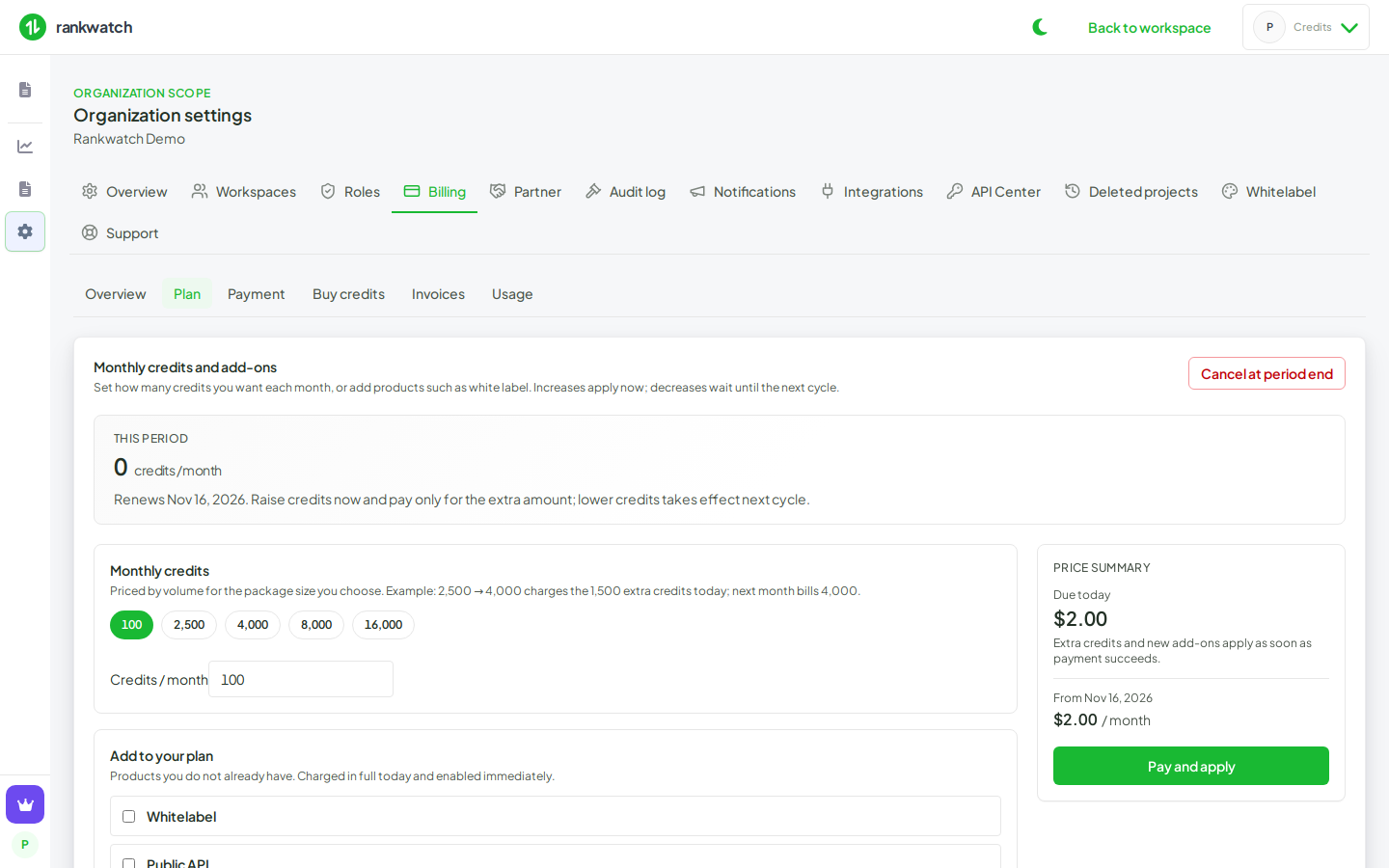
Raise or lower monthly credits, or add products such as white label, from Organization settings → Billing → Plan.
Prerequisites
- Organization owner
- Invoice profile saved (business name and address) before a paid change
Plan is where you set the recurring credit allowance and add products you do not already have. It does not sell a different named bundle. One-time top-ups stay on Buy credits.
Steps
- Sign in as the organization owner.
- Open Organization settings → Billing → Plan.
- If RankWatch asks for invoice details first, save country, business name, address, city, and postal code. India also needs a state. Country and India state lock after they are saved.
- Under Monthly credits, pick a preset or enter credits per month. The price summary shows Due today.
- Under Add to your plan, check products you do not already have (for example white label). Items already on the plan stay checked and cannot be removed here.
- Confirm:
- Raising credits or adding a product charges the extra amount today. Extra credits and new products apply as soon as payment succeeds. The next invoice bills the new monthly total.
- Lowering credits does not change this month. The smaller allowance starts at the next cycle. You pay nothing today for that decrease.
- Choose Pay and apply and complete hosted checkout when Due today is greater than zero. Card details stay on the payment provider. Cancel at period end on the same screen keeps access until the current term ends.
Outcome
This period’s credit allowance matches what you paid for. A scheduled decrease is called out on the price summary until the next cycle. To add a short reserve without changing the monthly total, use Buy one-time credits.